Target Audience with SharePoint
Targeting audience in SharePoint Server is key functionality to manage the information access to specific set of employees on SharePoint site pages. In interview common question is" how can handled a set of people with same interest I mean group of people which are from Same departments like Sale, HR, Management etc. in an Organization ". Lets Start answering for this question.
Basically SharePoint has multiple ways to handle Target Audience for different type of content. which are following-
1- Set Target Audience for a Web Part- This is very common way to handle Target Incidence. this used by SharePoint Administrator. Target audience is supported by few Out of Box Web Parts like Content editor. To set the audience, First move page in edit mode then edit the Content editor Web Part. set the audience name in audience field.
2- Display SharePoint List and Library items in Webpart to Targeted Audience- you can use Content Query Web Part because Content Query Web Part allows you to build a query that can filter list and library items. Edit the Web Part and set list name and audience targeting. When the page is rendered, the content in the Web Part appears only to current users who are members of the audiences you specified.
3- Target a navigation link to an audience- It can be done by Structured Navigation where you can click on add a link and There is a field "Target Audience".
4- Target Audience By SharePoint Search- SharePoint search can be used to handle target Audience. few step are necessary for it.
Example- "Pre-Sales Team have to see only that content uploaded by Sales division in Search" that can be a scenario to be asked during interview. Lets see how can resolved it.
Assuming that Announcement list is used to upload the announcement related to Sales Division.
First Step-
How can find division of an User? It can be find out by using User properties. User Property "Department" is used to find out Division of an user.
Second Step-
Create a Site column Called "Target". In case of Site column, Managed Property will be created automatically. Further No need to map the crawl property with Managed Property for this Target Column.
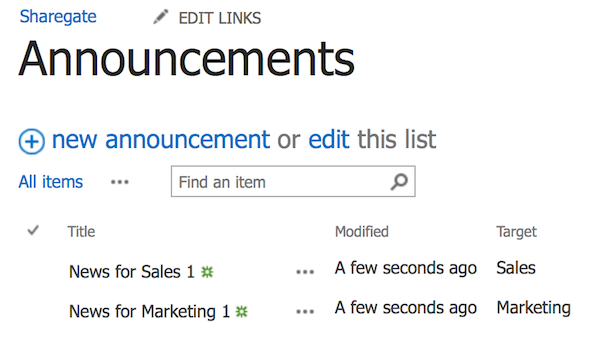
First, We have to find out the Managed Property that has mapping the Crawled Property that contain the Target Column.

Then, In Same way, We have to find out the Managed Property that has mapping with the Crawled Property that is like People:Department, Ows_Department.

Third Step- Adding A Content Search WebPart On Page and Set query.
Before adding Content Search WebPart, Make and Test your query. as we can see in image
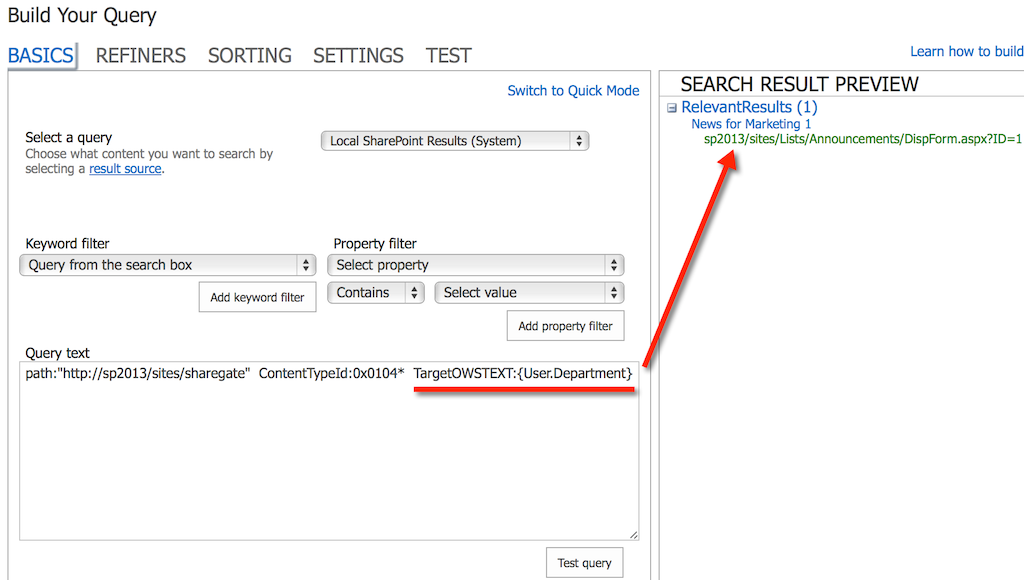
After adding the Content Search on the page, I edited the Query to find all items using the Announcement Content Type under a specific URL. Again, you can adapt the query to fetch what you need. Or you can set the Target as Sale.
Only Sales Division Related Announcement will be shown in that page for the Pre-sales team by this search web part. it is specifically only for Sales Division.
I hope this help.
Comments
Post a Comment